Environments
An environment is the isolation boundary inside a project — dev, staging, production. Services in one environment can't reach services in another (see Environments don't cross-talk for the network details).
This page covers the environment lifecycle in the console: creating, editing, deleting, and the per-environment surfaces (custom domains, network access, SphereStor management).
Create an environment
-
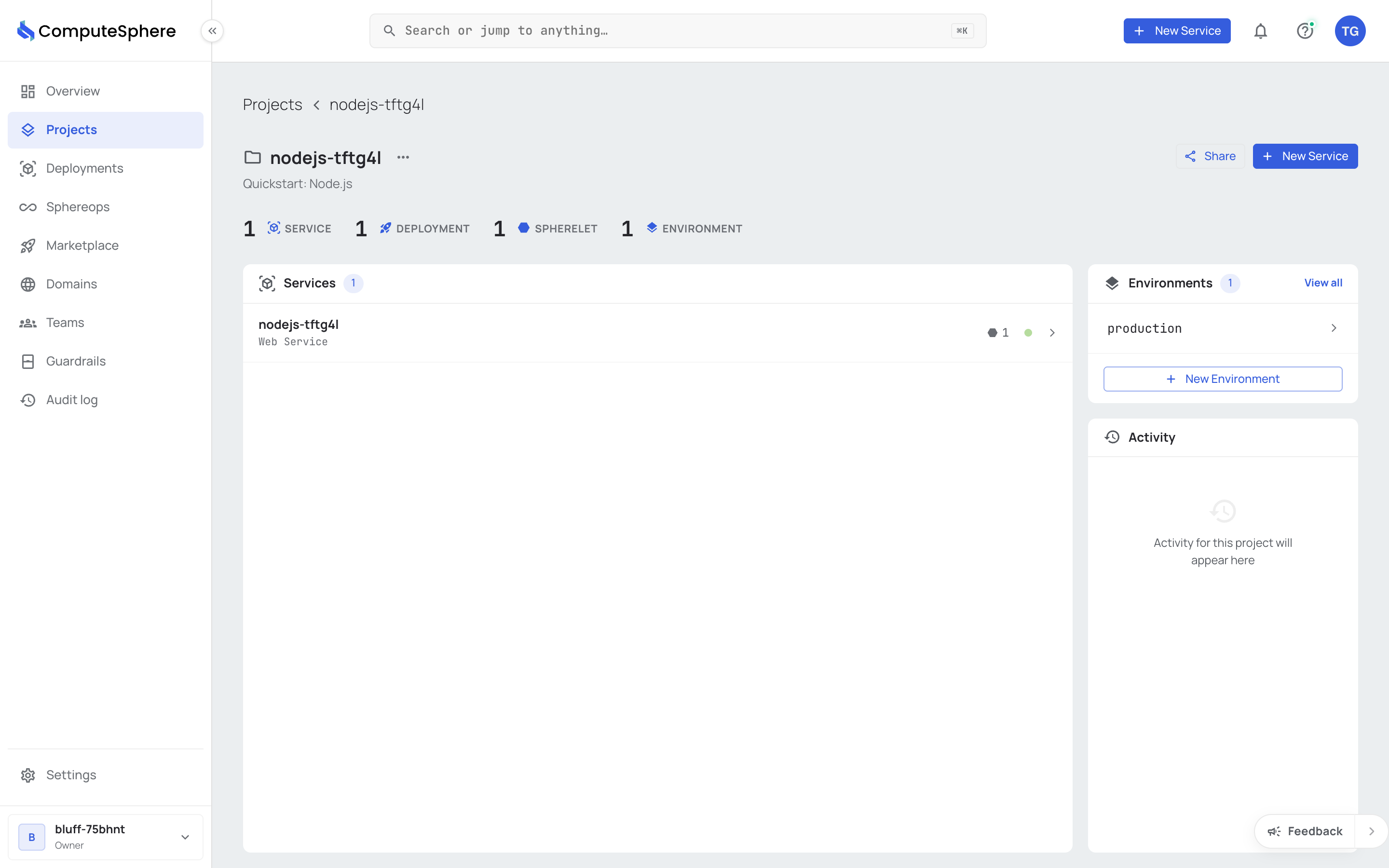
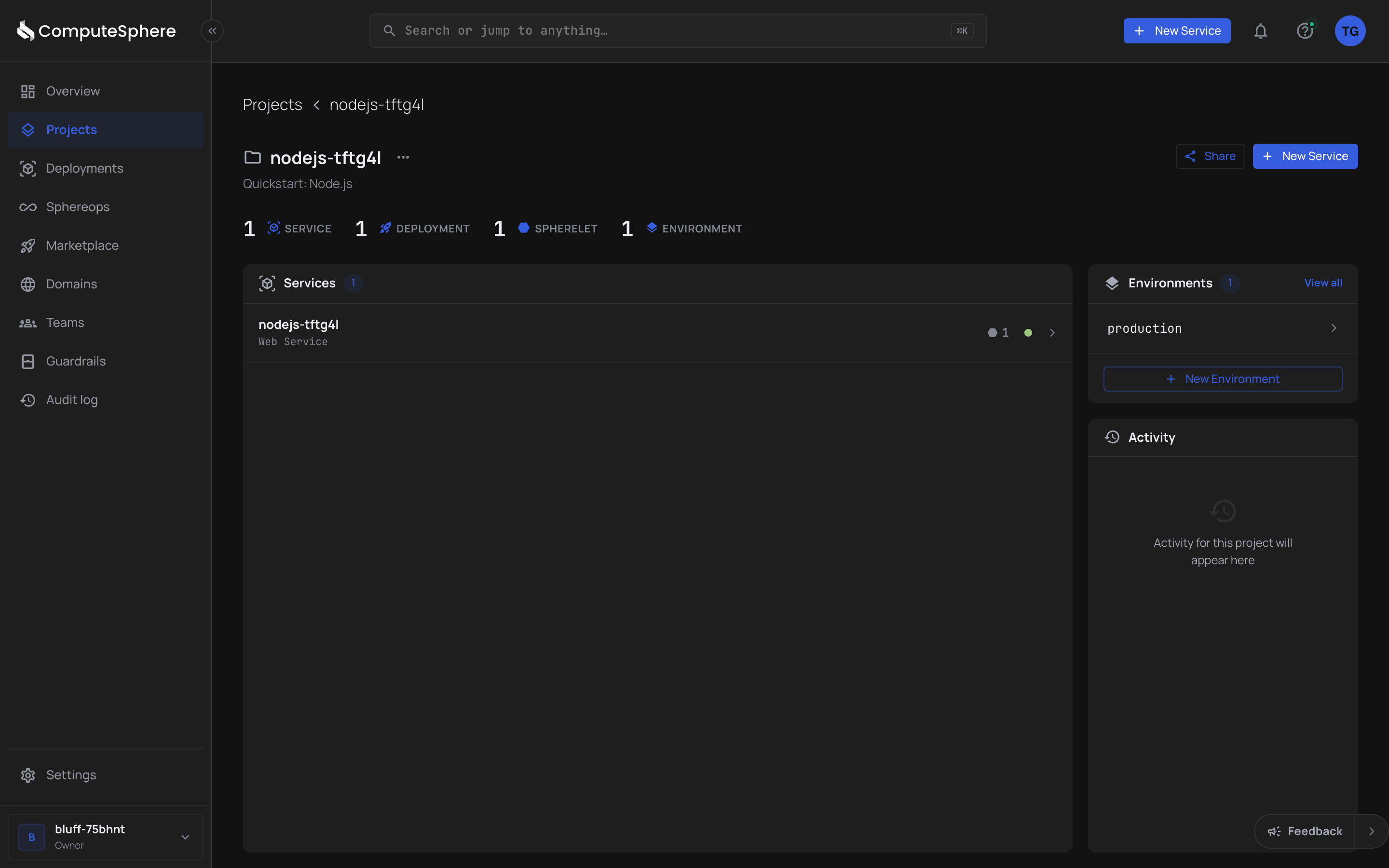
Open the Projects tab and pick the project.
-
In the Environments card on the right, click + New Environment.


-
Fill in the form:
Field What it does Name e.g. dev,staging,production. Per-project.Region Inherited from the account by default; one of the supported regions. Private network Toggle to make the environment network-isolated from the public internet. Off = standard public-by-default with optional IP allowlists. -
Click Create.
Edit an environment
Next to the environment name, click the options menu and pick Edit environment. Update the fields and click Update.
Delete an environment
Next to the environment name, click the options menu and pick Delete. Type the environment name to confirm — that's the destructive-action guardrail.
Deleting an environment removes its services, deployments, datastores, and any SphereStor volumes attached to it. There's no undo — see Honest limits.
Per-environment surfaces
Once an environment exists, several configuration surfaces live inside it.
Custom domain (environment subdomain)
The environment can have its own subdomain on top of each service's own custom domains. Under the environment's Domain section, toggle the subdomain on — the platform generates a random one — or click Add custom domain to attach your own.
See Custom domains for the full DNS setup.
Network access settings
Next to the environment name, open the options menu and pick Access settings to set IP allowlists or public/private network mode.
See Networking for the rules — what's public by default, what allowlists do, what private-network mode actually isolates.
SphereStor management
Each environment has its own SphereStor volumes. From the environment's options menu, pick SphereStor management:
| Action | What it does |
|---|---|
| Create new SphereStor | Provision a persistent block volume. Set name and size. |
| Edit a SphereStor | Resize (grow only — you can't shrink). |
| Delete a SphereStor | Removes the volume after detaching from any service that mounts it. |
For the storage model and the lifecycle rules, see SphereStor.
Honest limits
- Environment region is inherited from the account at creation. Changing the region post-create isn't supported — create a new environment in the new region instead.
- Environment name is unique per-project. Two projects can each have a
productionenv; one project can't. - Deletes cascade and aren't undoable. Deleting an environment deletes its services, deployments, datastores, and SphereStor volumes. The destructive-action guardrail (typing the name) is the only safety net.
- Cross-environment traffic doesn't work. Services in different environments are network-isolated. To share a datastore between two services, run them in the same environment.
- Private-network mode is environment-wide. You can't make one service in a public-network environment private; flip the whole environment.
What's next
- Add a service — deploy code into the environment.
- Networking — public-by-default, IP allowlists, private-network mode.
- Custom domains — DNS setup for environment subdomains.
- SphereStor — persistent storage inside the environment.
- Concepts — the account → project → environment → service hierarchy.