Share a project with a team
Sharing a project with a team grants every member of that team the same access to that project — at the level you pick. It gives them nothing on any other project.
| Level | What it grants |
|---|---|
| Viewable | Read-only. The member can see services, deployments, logs, and metrics but can't change anything. |
| Editable | Read everything, plus create services, edit configuration, deploy, roll back, manage environments, and manage files in SphereFiles. |
| Admin | Everything in Editable, plus open a terminal on a spherelet with SphereShell, read environment variable values, delete the project and what is in it, approve or reject builds, and change the deploy policy. |
Admin is admin of this one project. It doesn't include transferring the project to another account, or managing members or teams — those stay with the account's Owner and Admins.
Only an account Owner or Admin can share a project with a team or change a team's level.
Account-level Owner and Admin override all three — those roles always have full access to every project in the account regardless of any team share. See Security → Access controls for the full table.
Share a project
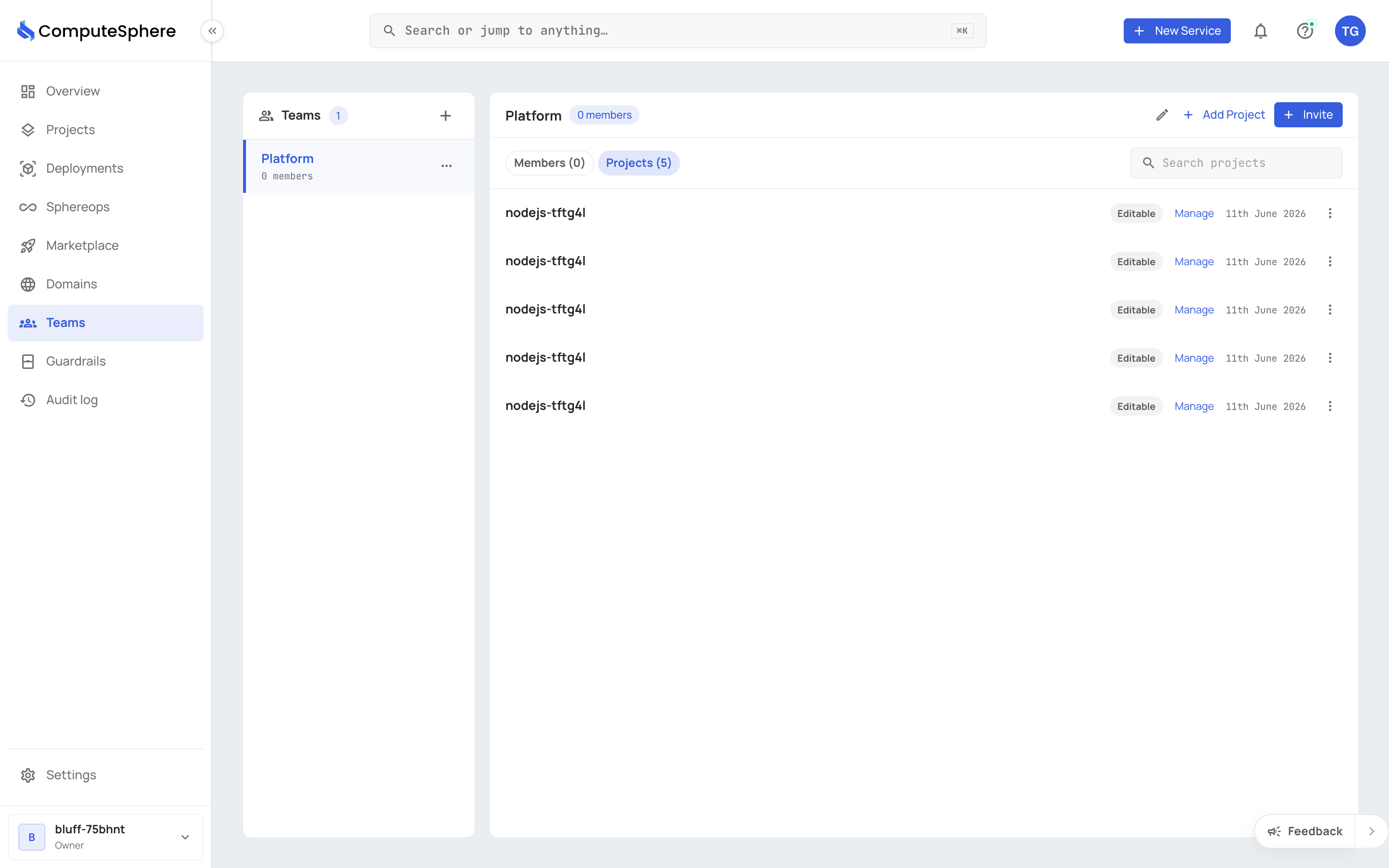
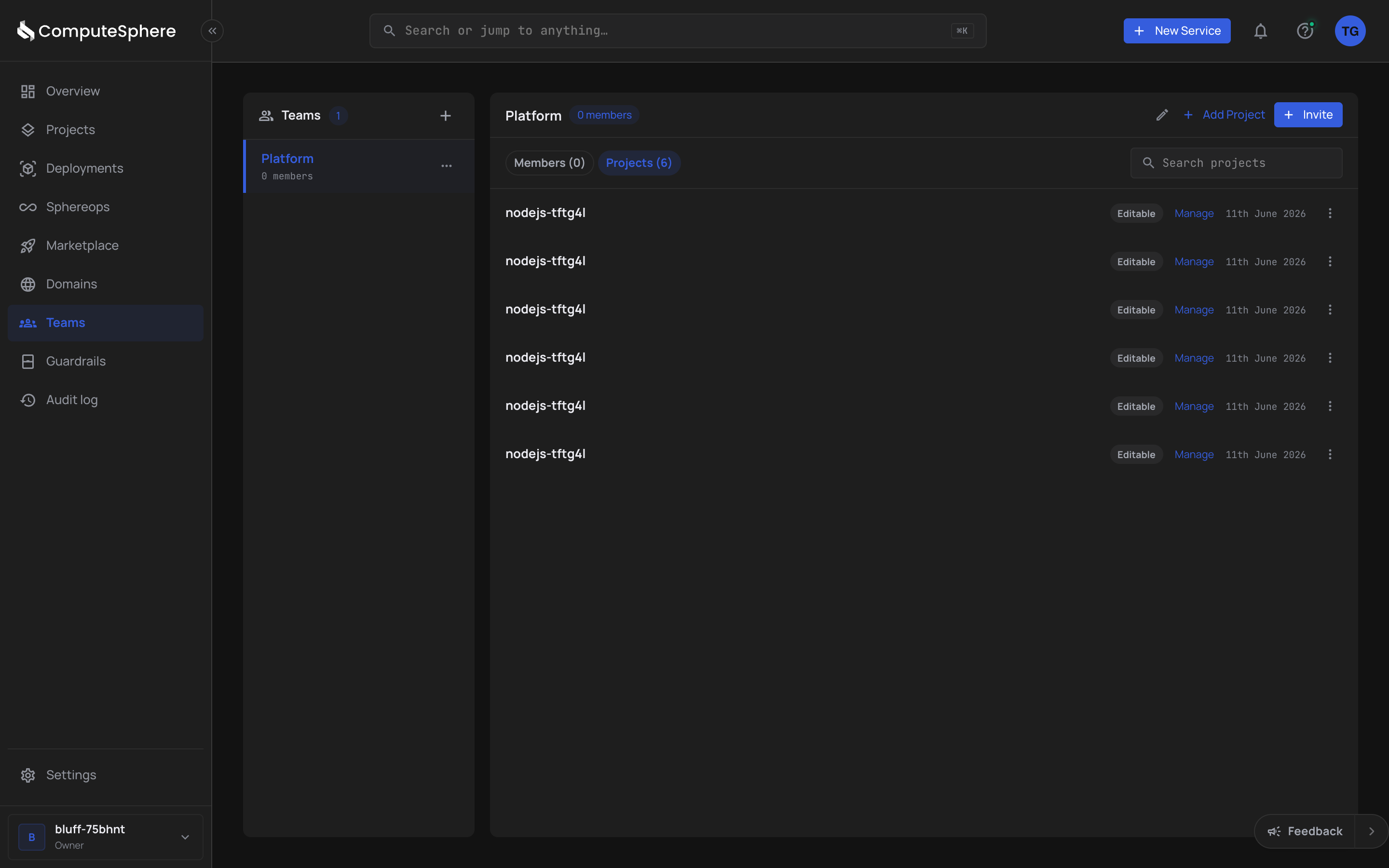
- Open the team and click Add Project on the Projects tab.
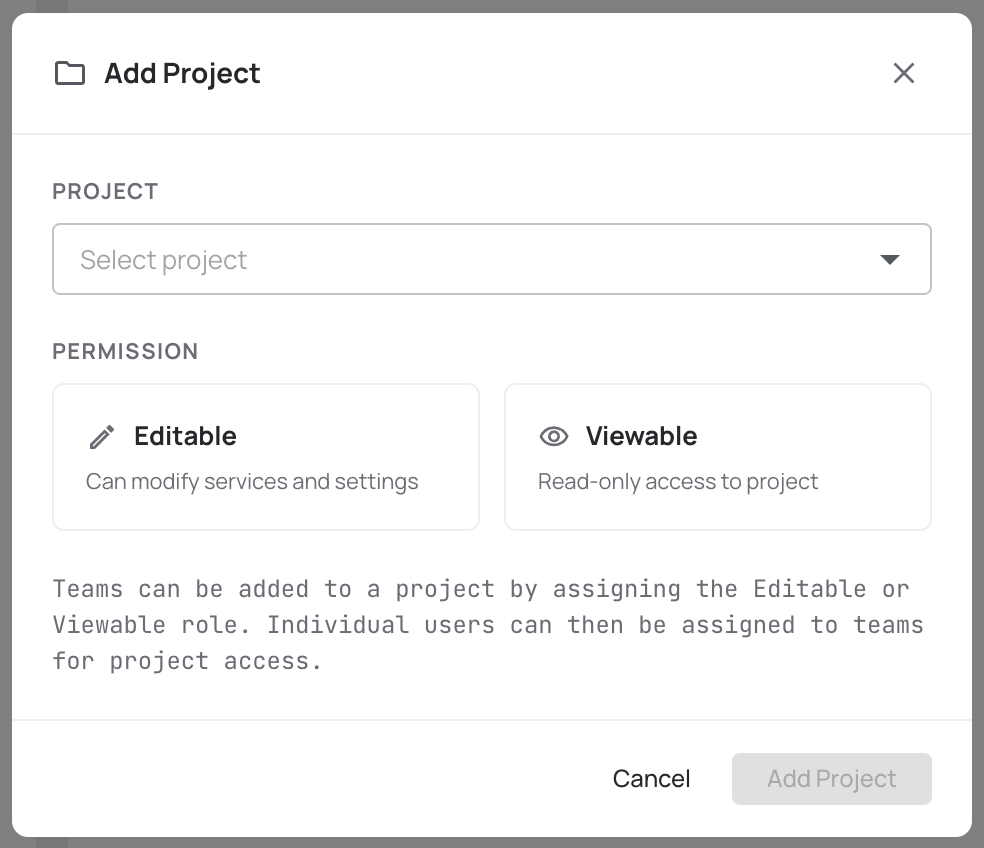
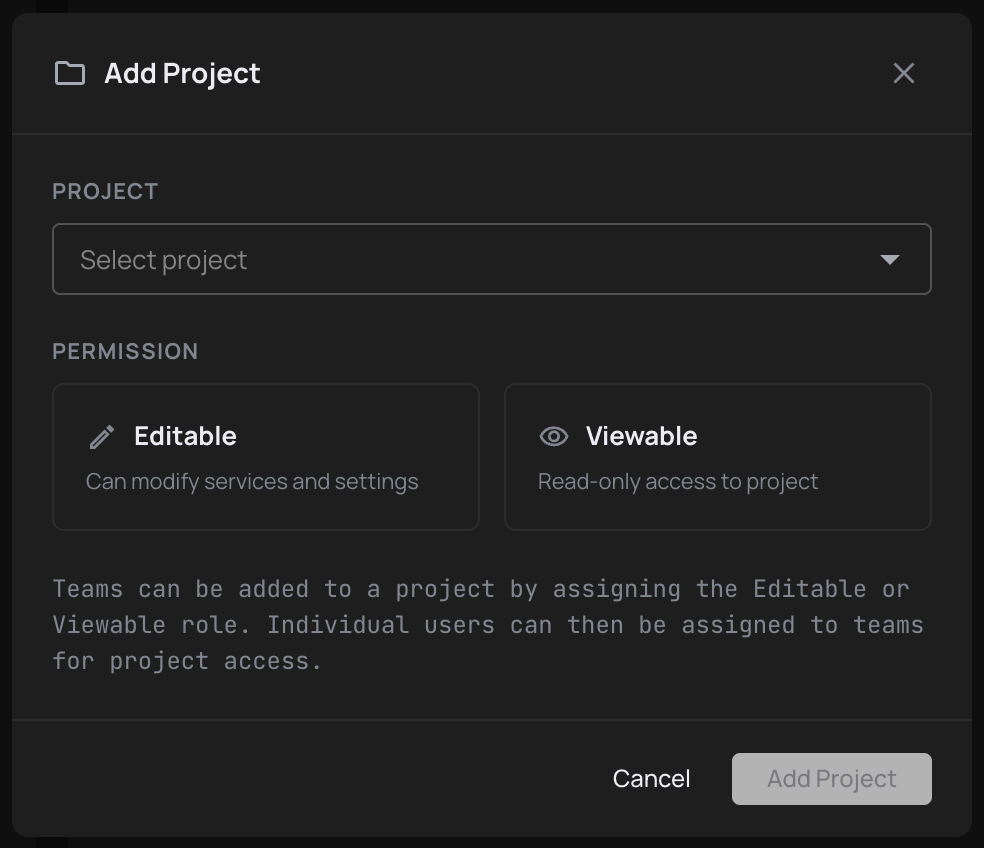
- Pick a project, choose Viewable, Editable or Admin, and click Add Project.
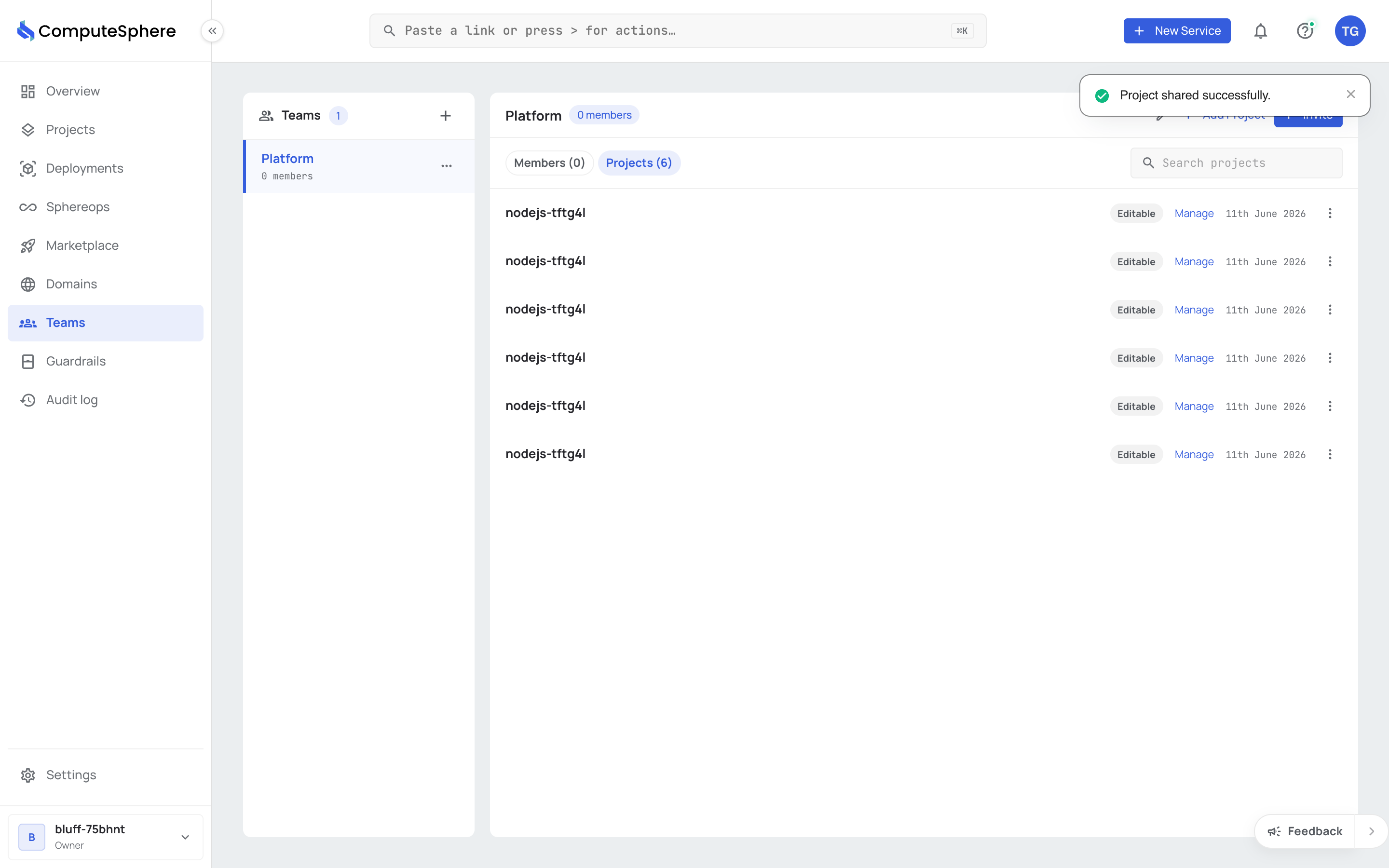
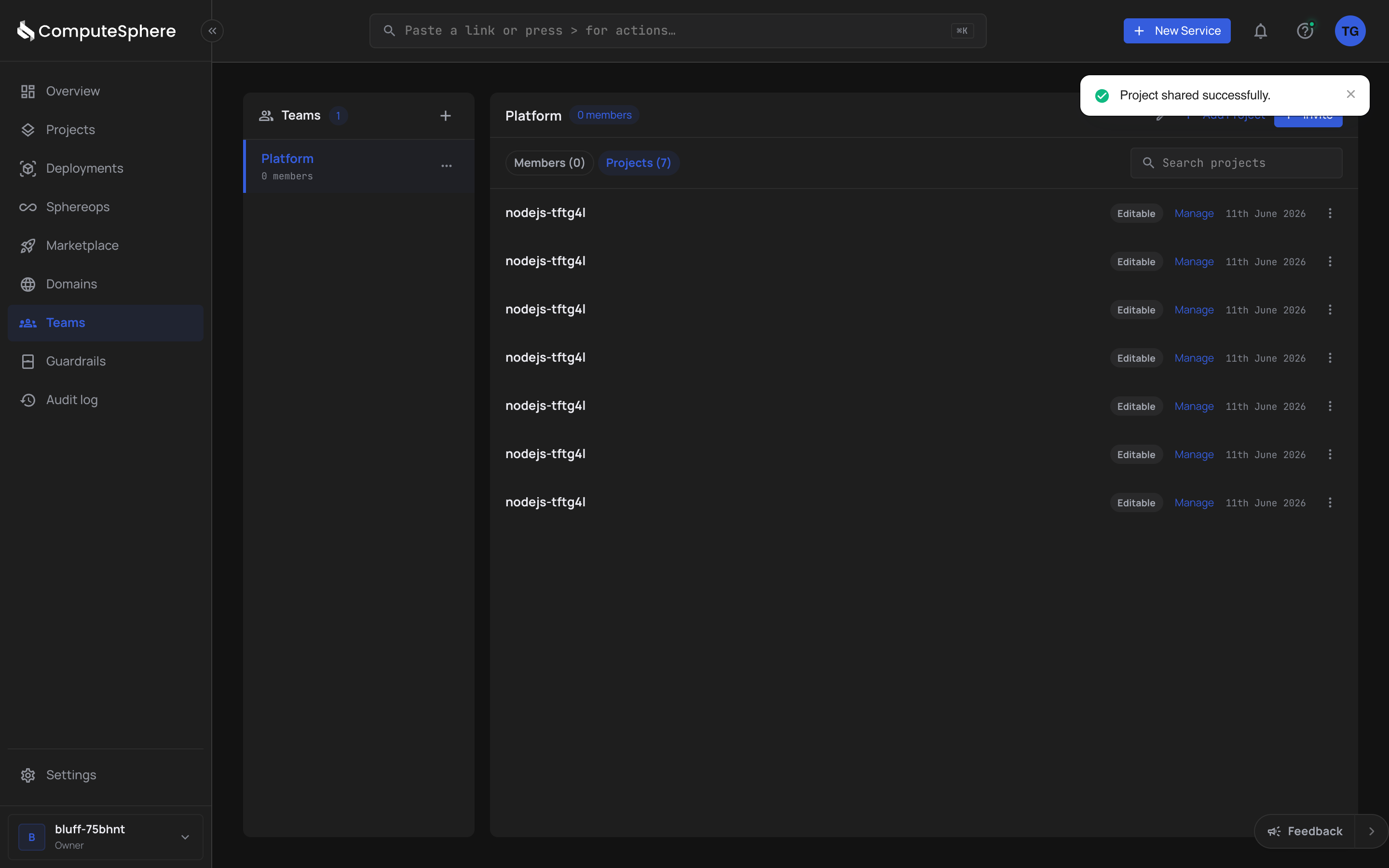
The project appears in the team's Projects list and every team member can now reach it from the Projects tab.
Change the role
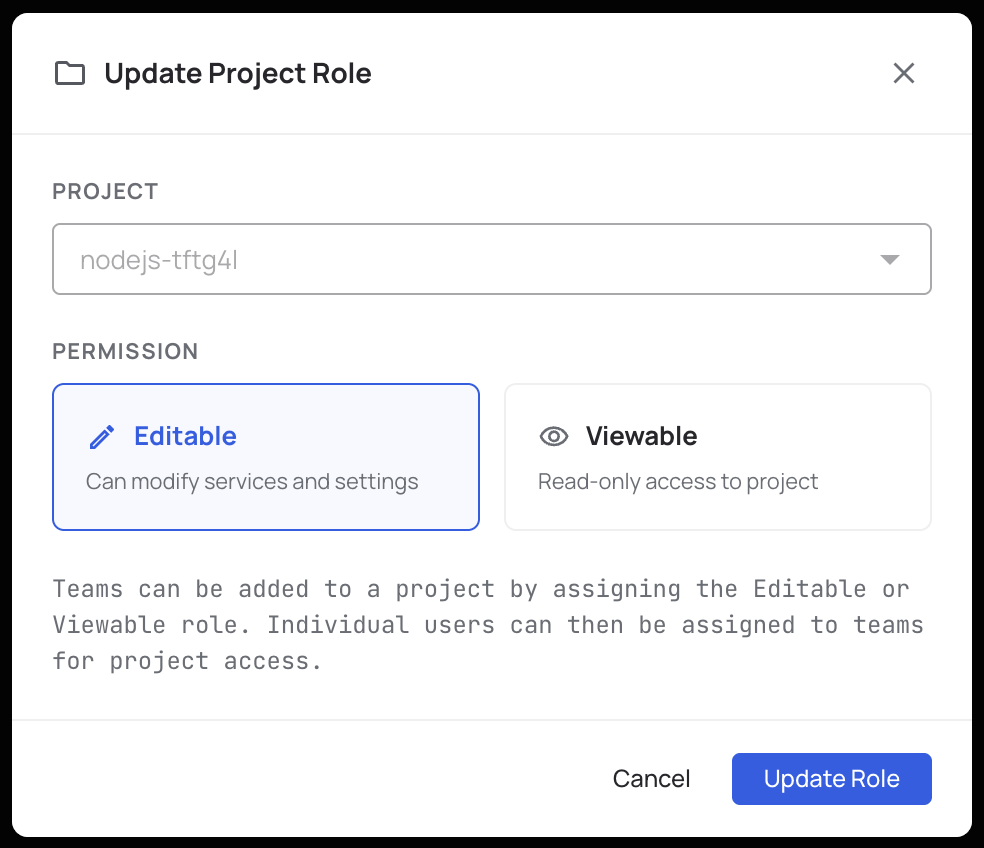
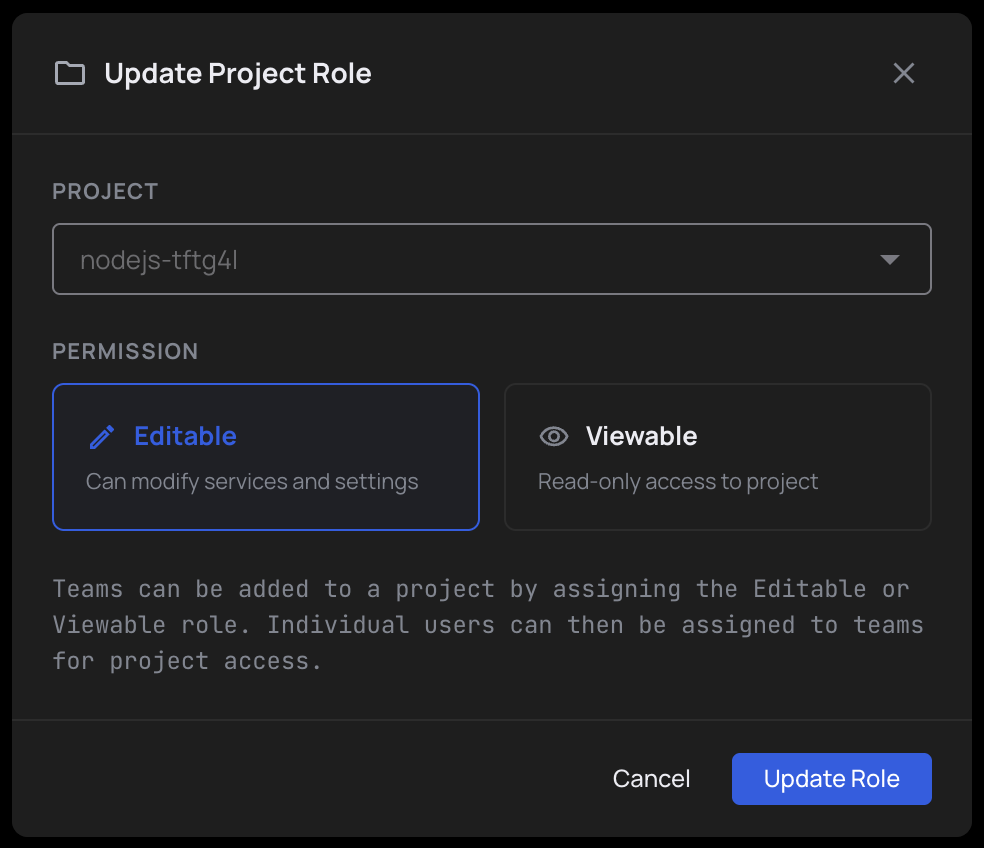
A role change applies to every member of the team at the same time, and takes effect on their next request. Raising a team to Admin is how you let its members open a terminal with SphereShell on one project without making them Admins of the account. If a member needs different access from the rest of the team, share the project with a second team and put just that member on it.
- On the team's Projects tab, click Manage Access on the project row.
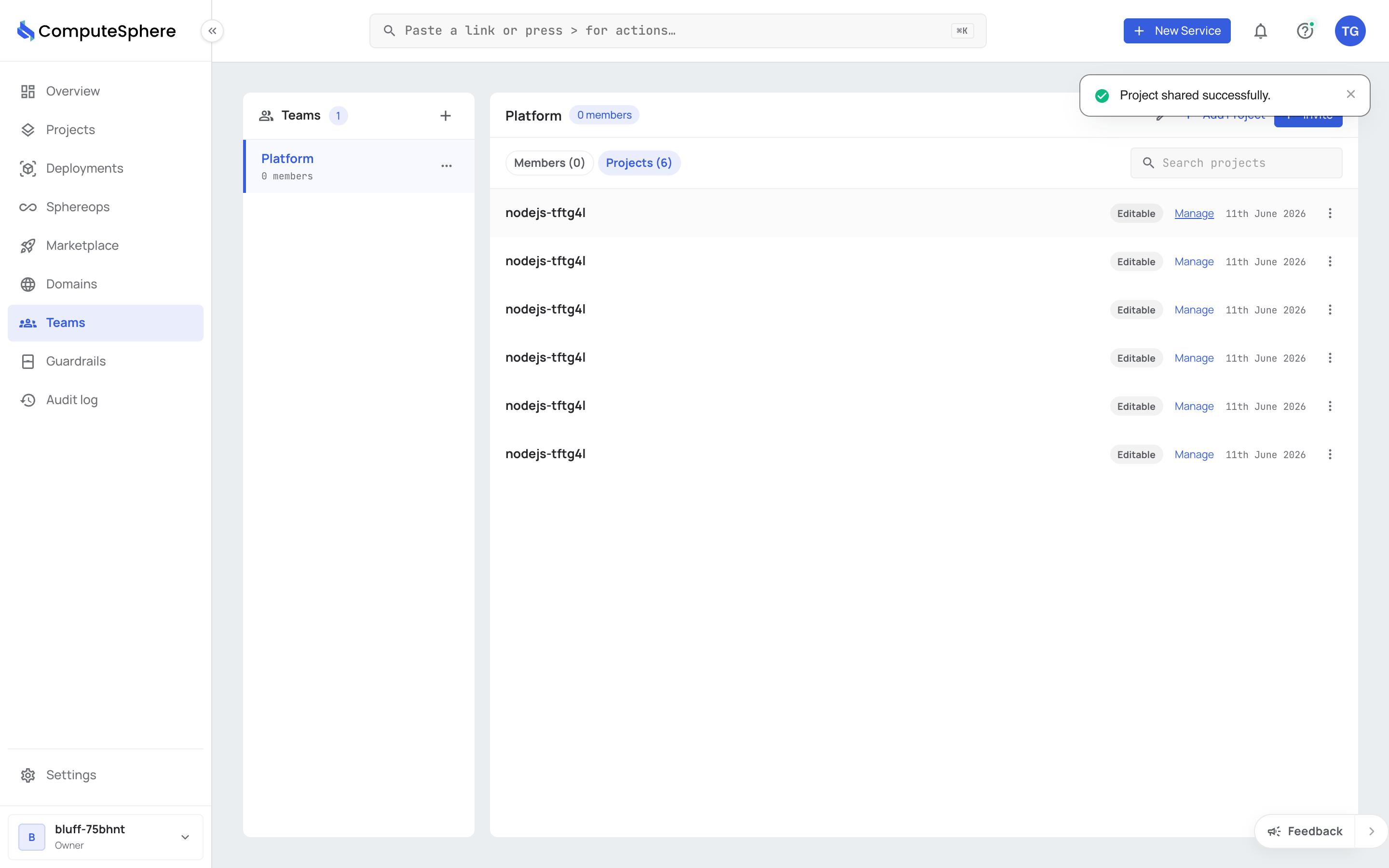
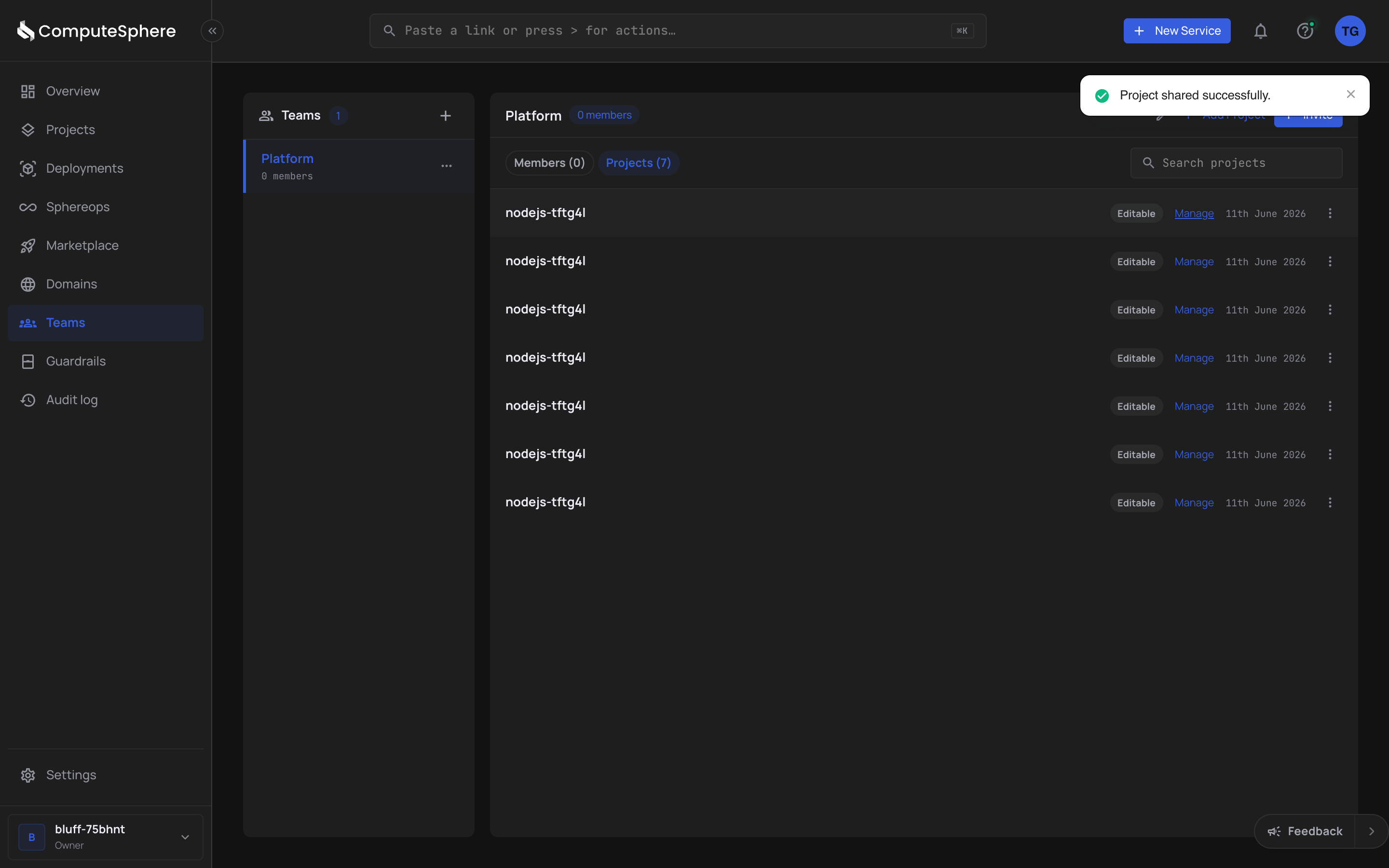
- Pick the new role and click Update Role.
Remove a project from a team
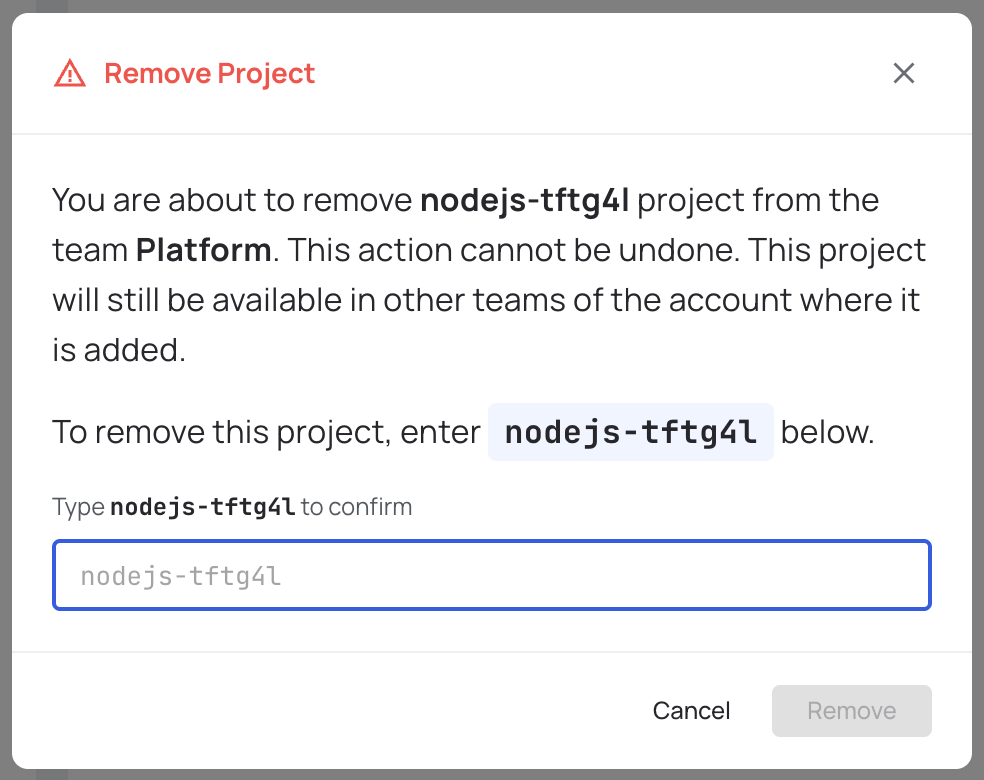
Removing a project revokes the share. Every team member loses access via this team at the same time. Members keep access through any other team that still shares the project, or through their account role if it's Owner or Admin. The project itself, its services, and its deployments are untouched.
- On the team's Projects tab, click the actions menu (three dots) on the project row and choose Remove Project.
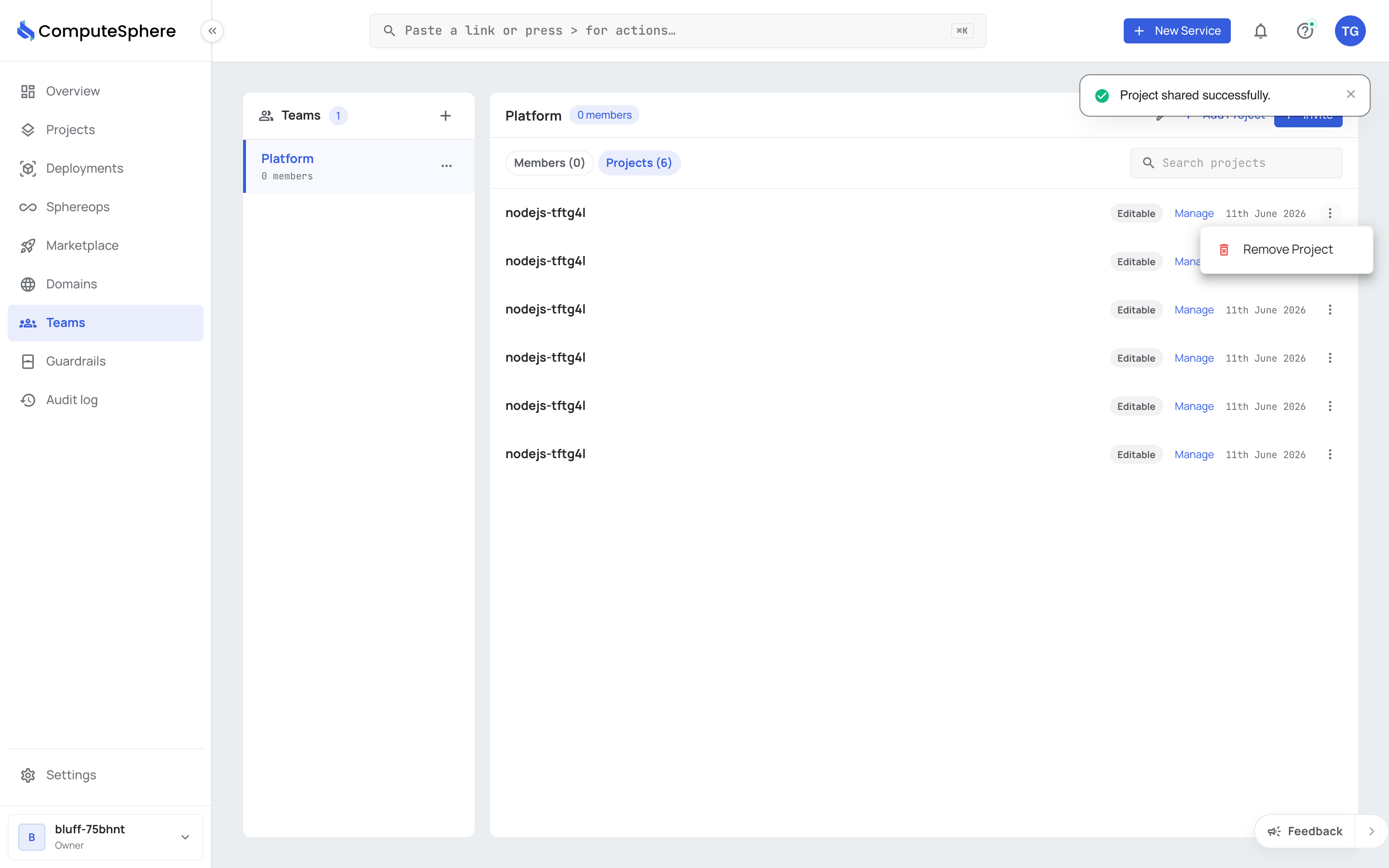
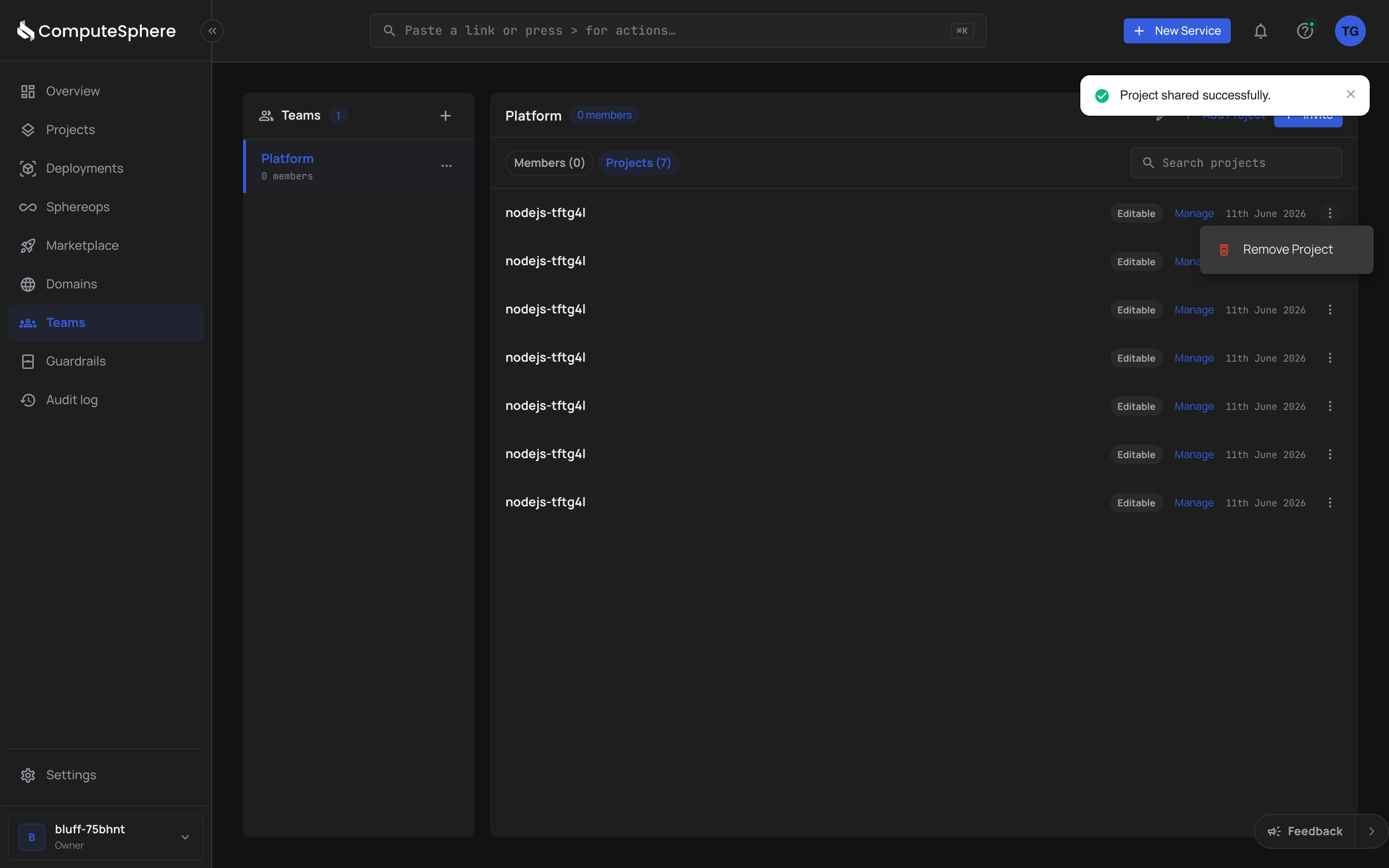
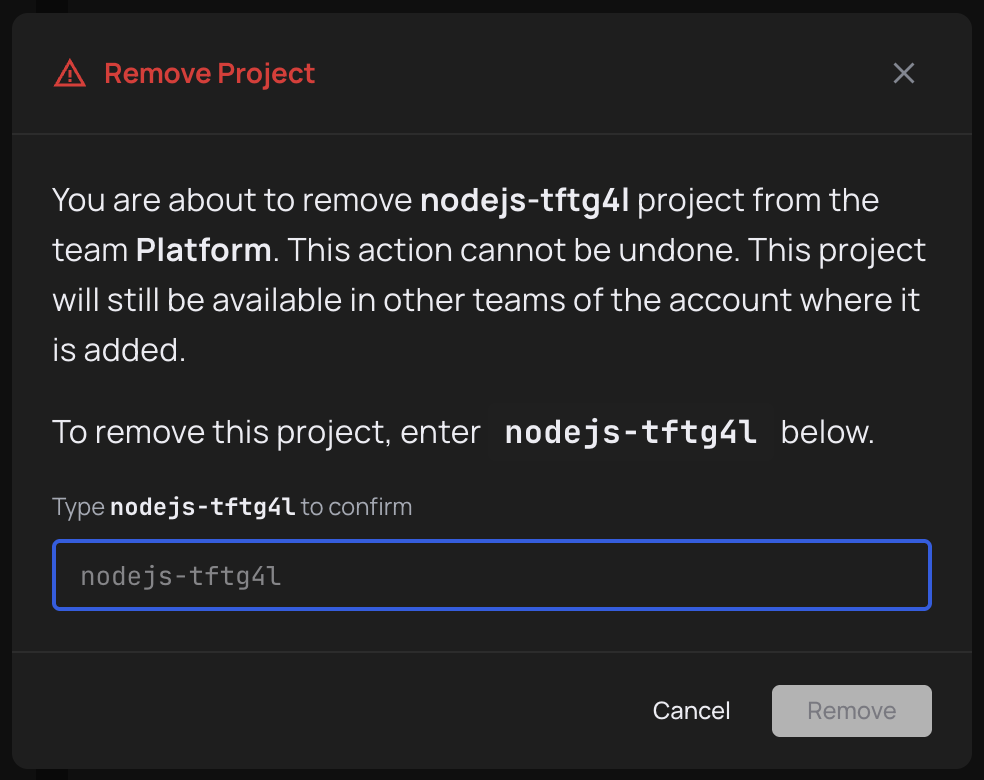
- Type the project name to confirm, then click Remove.
List shared projects
curl https://api.computesphere.com/v2/teams/TEAM_ID/projects \
  -H "Authorization: Bearer YOUR_API_TOKEN" \
  -H "x-account-id: YOUR_ACCOUNT_ID"
Returns the standard v2 list envelope:
{
  "object": "list",
  "items": [
    {
      "object": "team_project",
      "id": "f131e7f9-1d6a-4d38-9182-faac1160f2ad",
      "team_id": "01a8645d-0ff1-45b2-83c5-a5e3cda9cf66",
      "project_id": "7fce2e2c-5416-4c7b-a974-26b017da79a5",
      "project": {
        "object": "project_ref",
        "id": "7fce2e2c-5416-4c7b-a974-26b017da79a5",
        "name": "checkout"
      },
      "role": "editable"
    }
  ],
  "pagination": { "page": 1, "size": 20, "total": 1 },
  "warnings": []
}
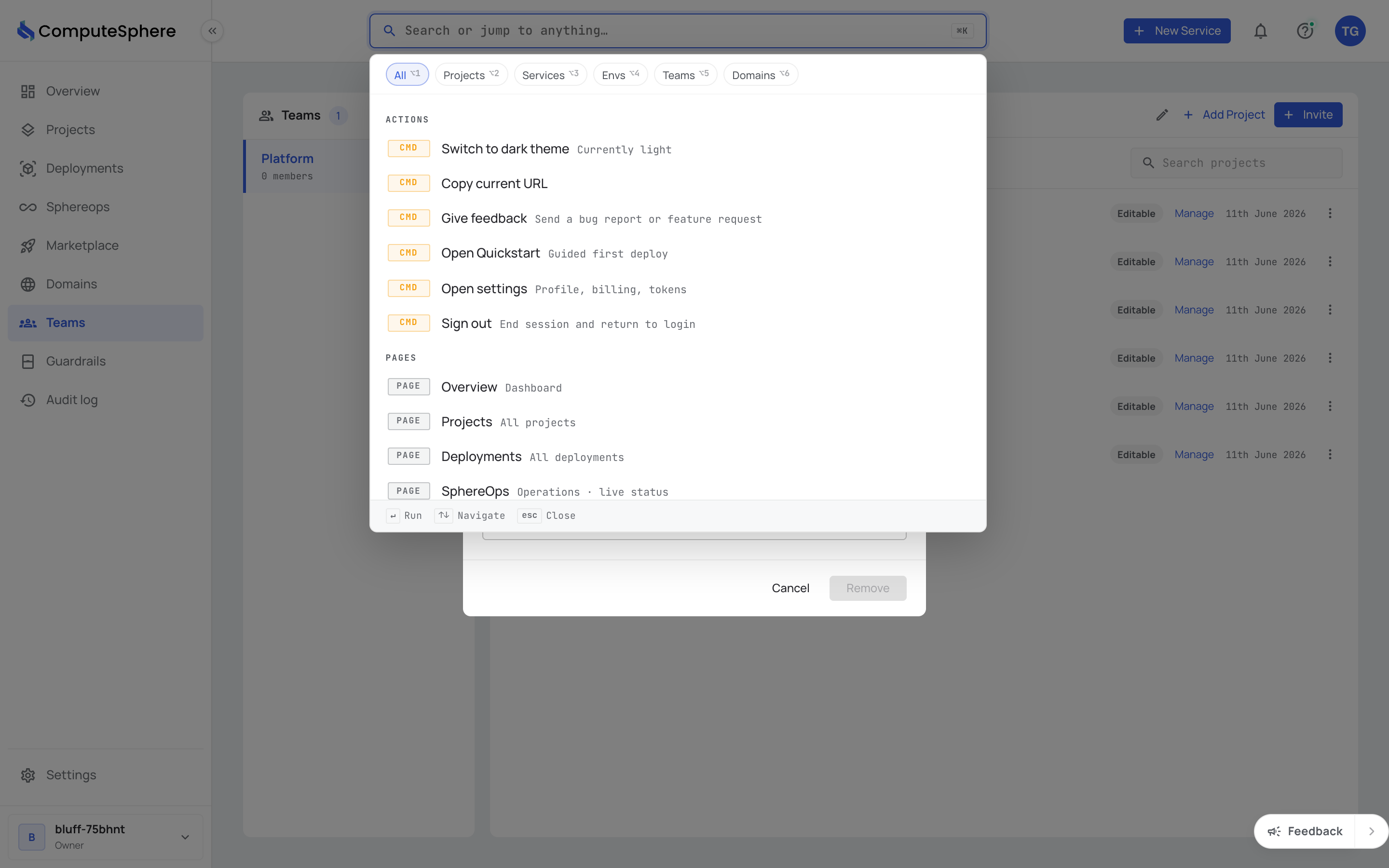
A search box on the Projects tab filters by project name as you type.
Honest limits
- Three levels, no custom ones. Viewable, Editable and Admin are the only project levels. There's no finer granularity today (no "terminal access but not delete", no per-environment level).
- Admin includes everything Admin includes. A team given Admin so its members can use SphereShell can also delete the project's services and approve its builds. There is no terminal-only level.
- Most permissive wins. If a user belongs to two teams and both share the same project, the user gets the higher role. There's no way to grant Viewable to a user who is Editable or Admin via another team.
- Account roles override team shares. An Owner or Admin on the account has full access to every project regardless of how a team has shared it. Use team shares to grant access to Member users.
- Removing the share revokes access in one step. There's no grace period. If you need to demote rather than remove, change the role to Viewable first.
- Cross-account shares aren't supported. A team belongs to one account. A project belongs to one account. You can't share a project from account A with a team in account B.
What's next
- Create a team — name a team before sharing into it
- Invite members — add account users to the team
- Security → Access controls — the full permission model
- FAQs → Roles & access — short answers to common questions