Invite members
Membership has two layers. A user joins the account first; only then can they be added to a team. The flows below walk through both, plus how to remove a user from a team.
| Layer | What it grants | Where you do it |
|---|---|---|
| Account | Sign-in to this account. A Member can view the account's projects; changing anything in one needs a team that has Editable or Admin on it. Owners and Admins have full access to every project. | Settings → Members, or via API |
| Team | Access to whatever projects the team has been shared with — at the role the team has on each project. | Teams tab, or via API |
Invite a user to the account
- Open the Teams tab and click Invite.
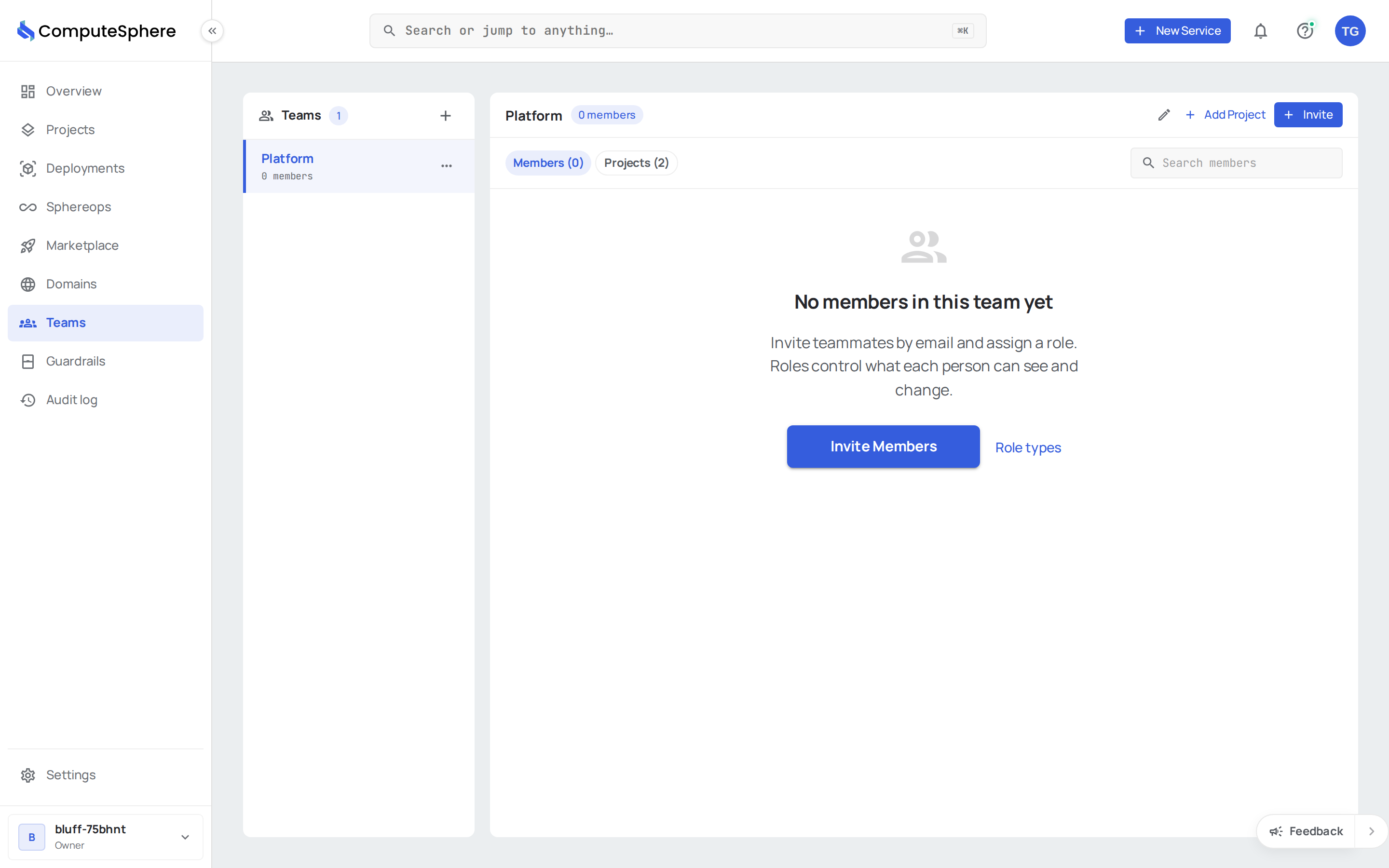
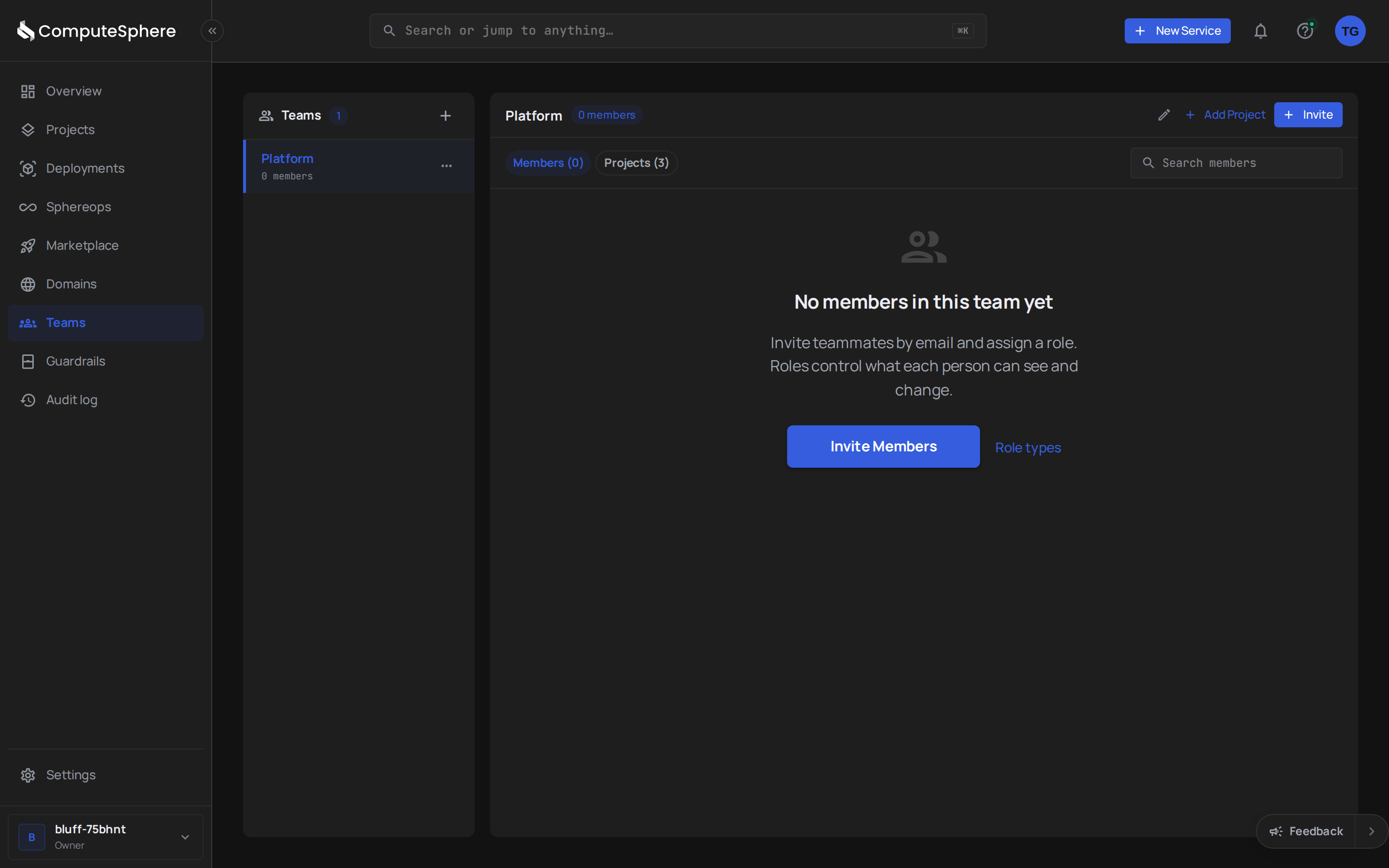
- Enter the user's email and pick an account role (Member or Admin), then click Send Invite.
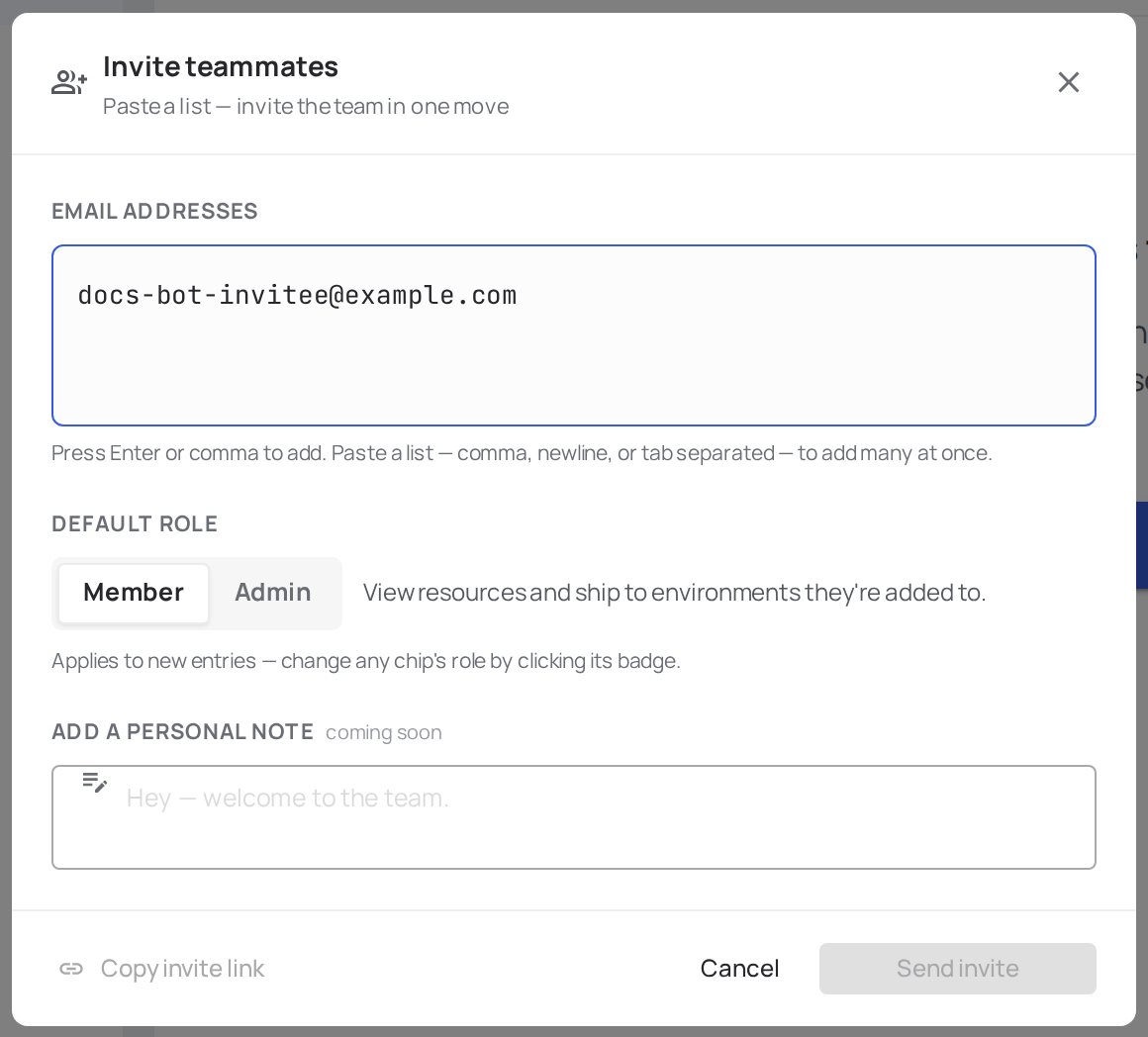
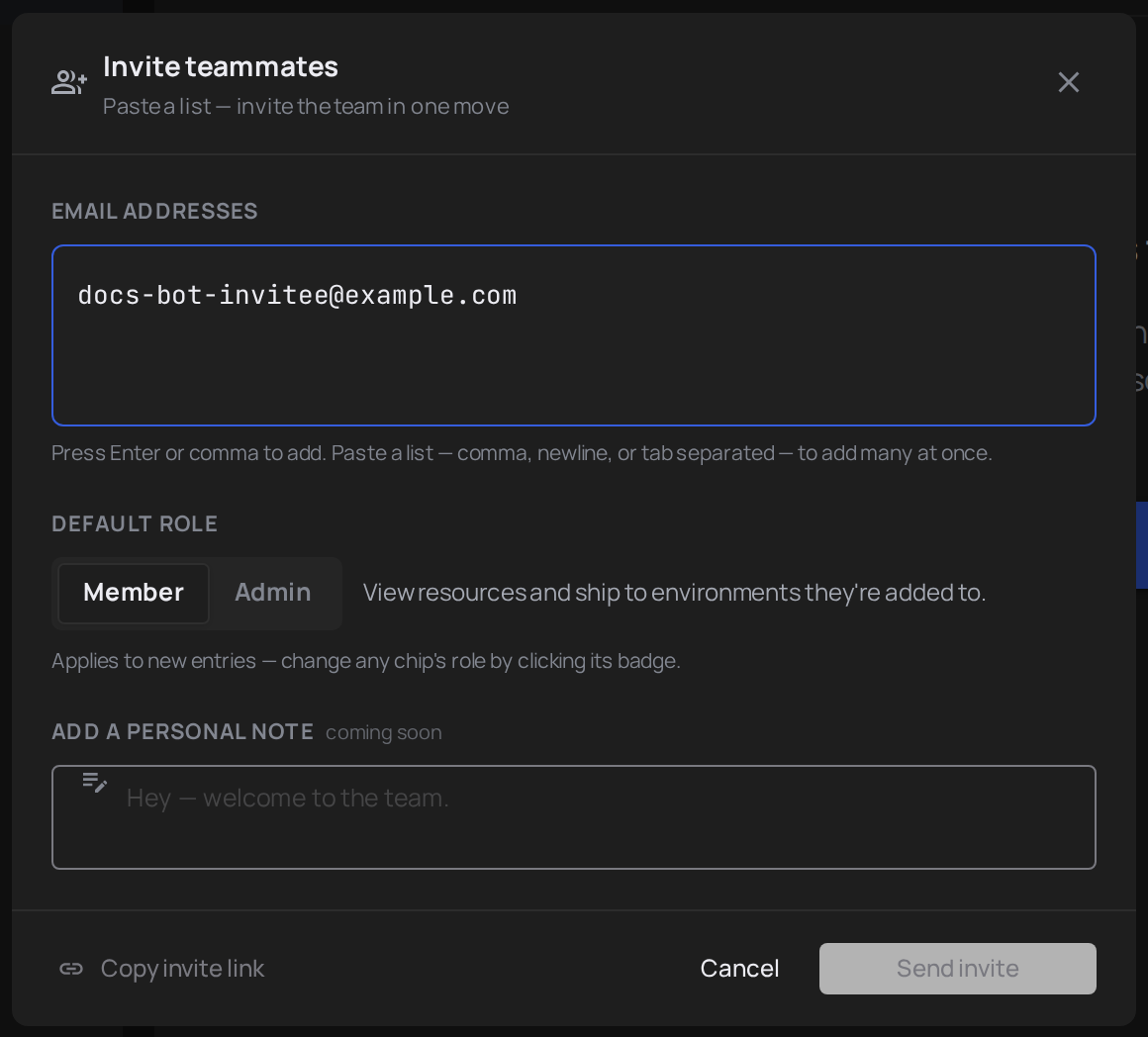
The invite is delivered by email. When the user accepts, they appear in the account members list and become eligible to join any team.
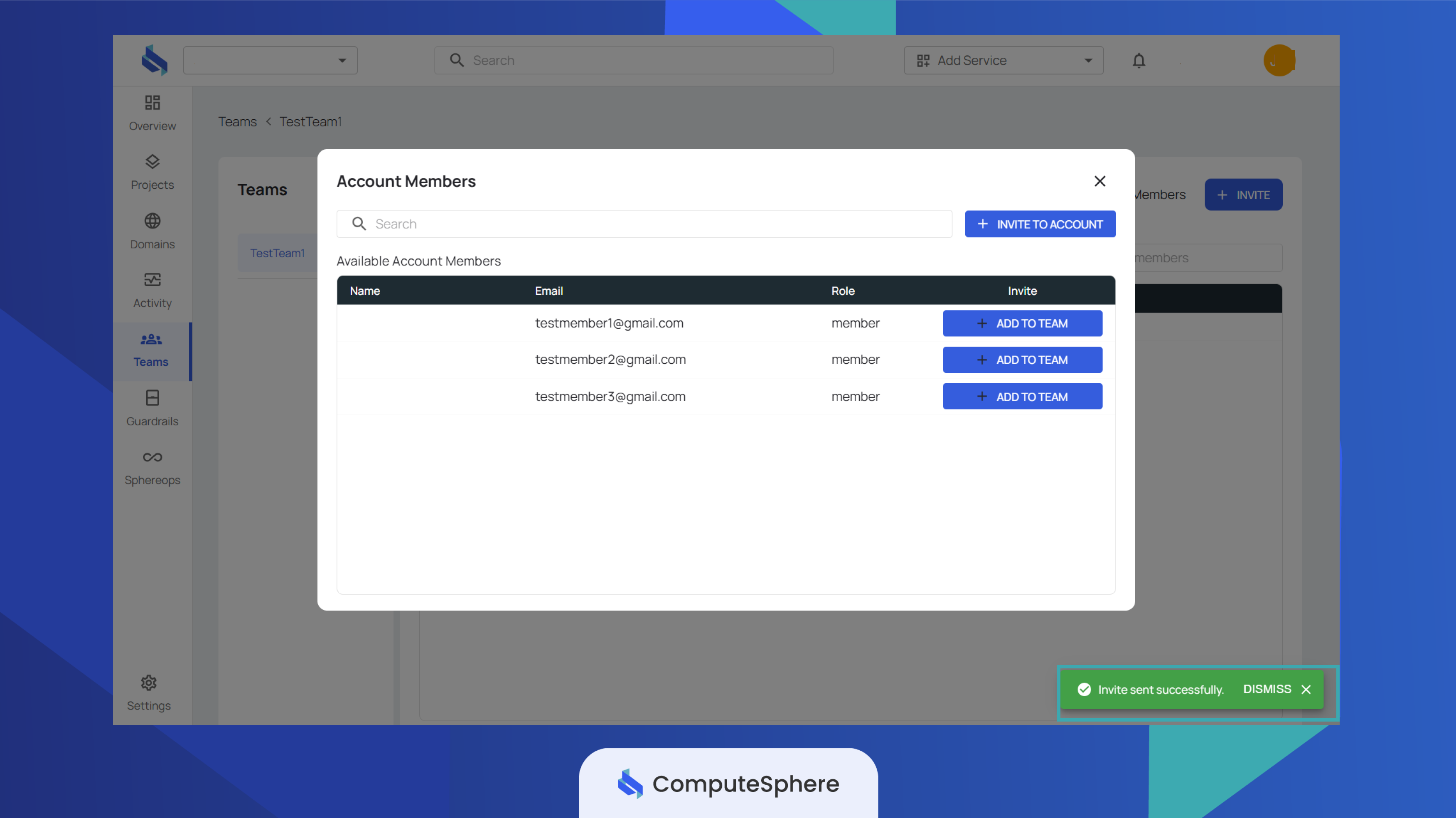
Add a member to a team
The user must already be an account member. If they aren't, invite them to the account first.
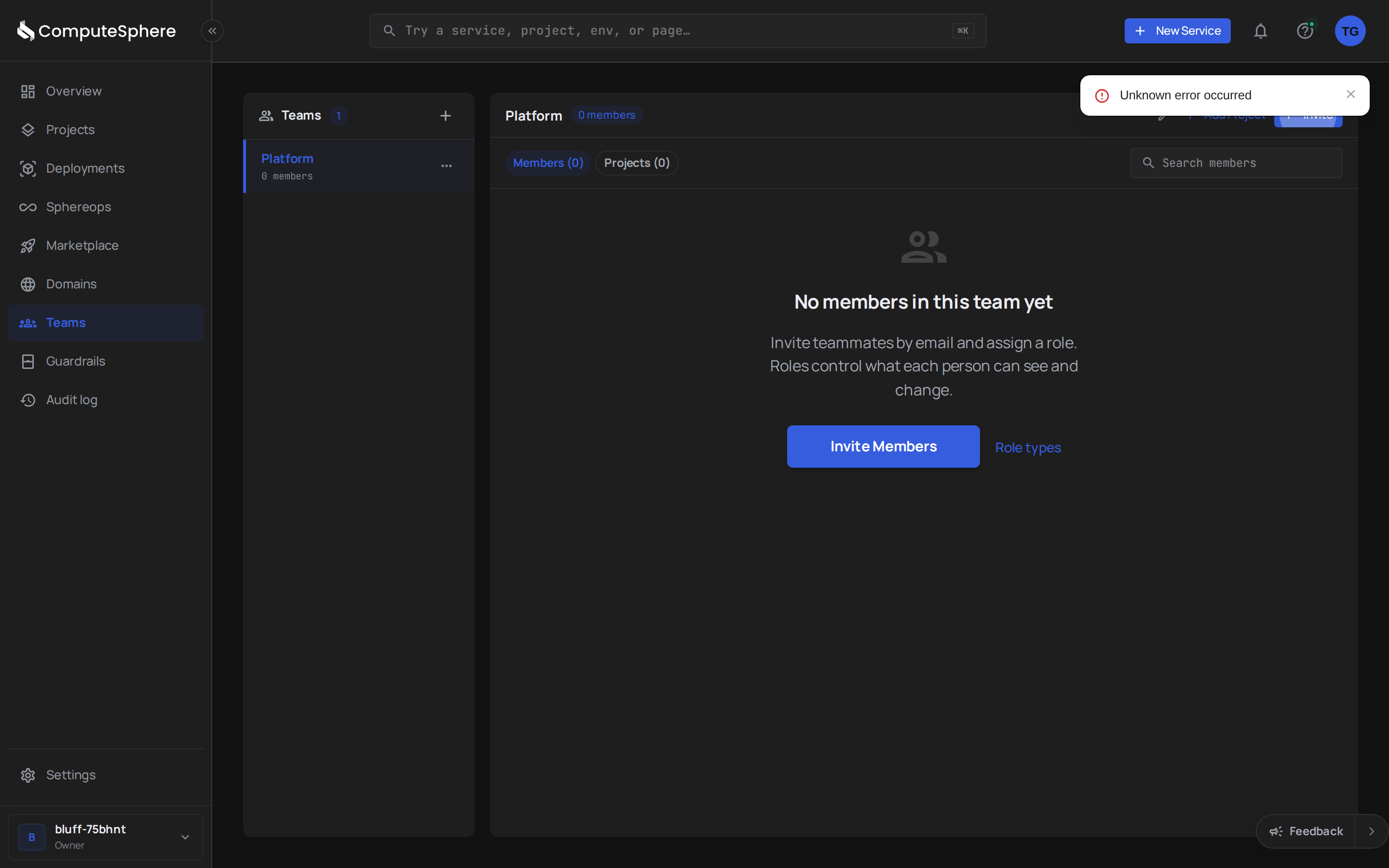
- Open the team and click Invite on the Members tab.
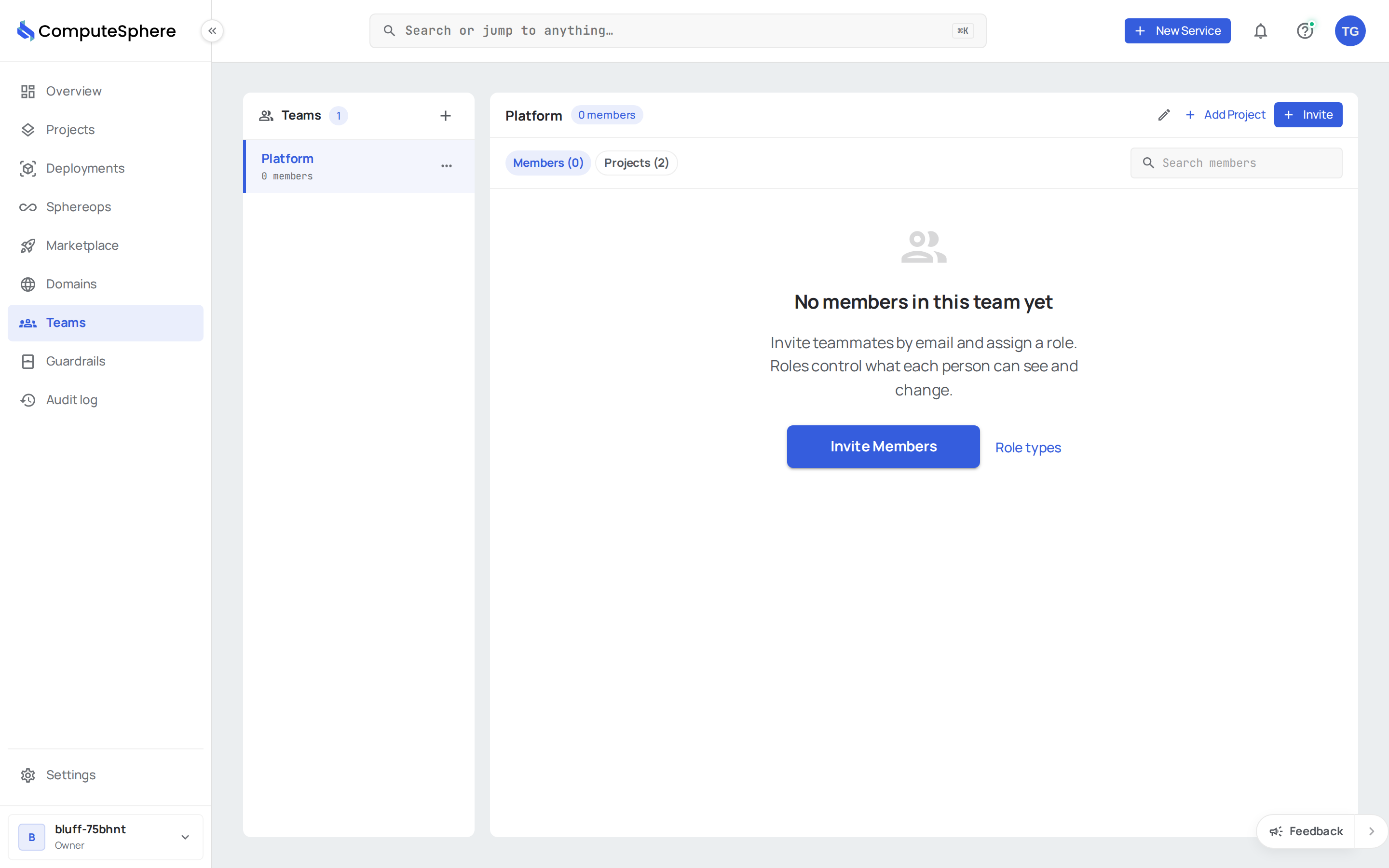
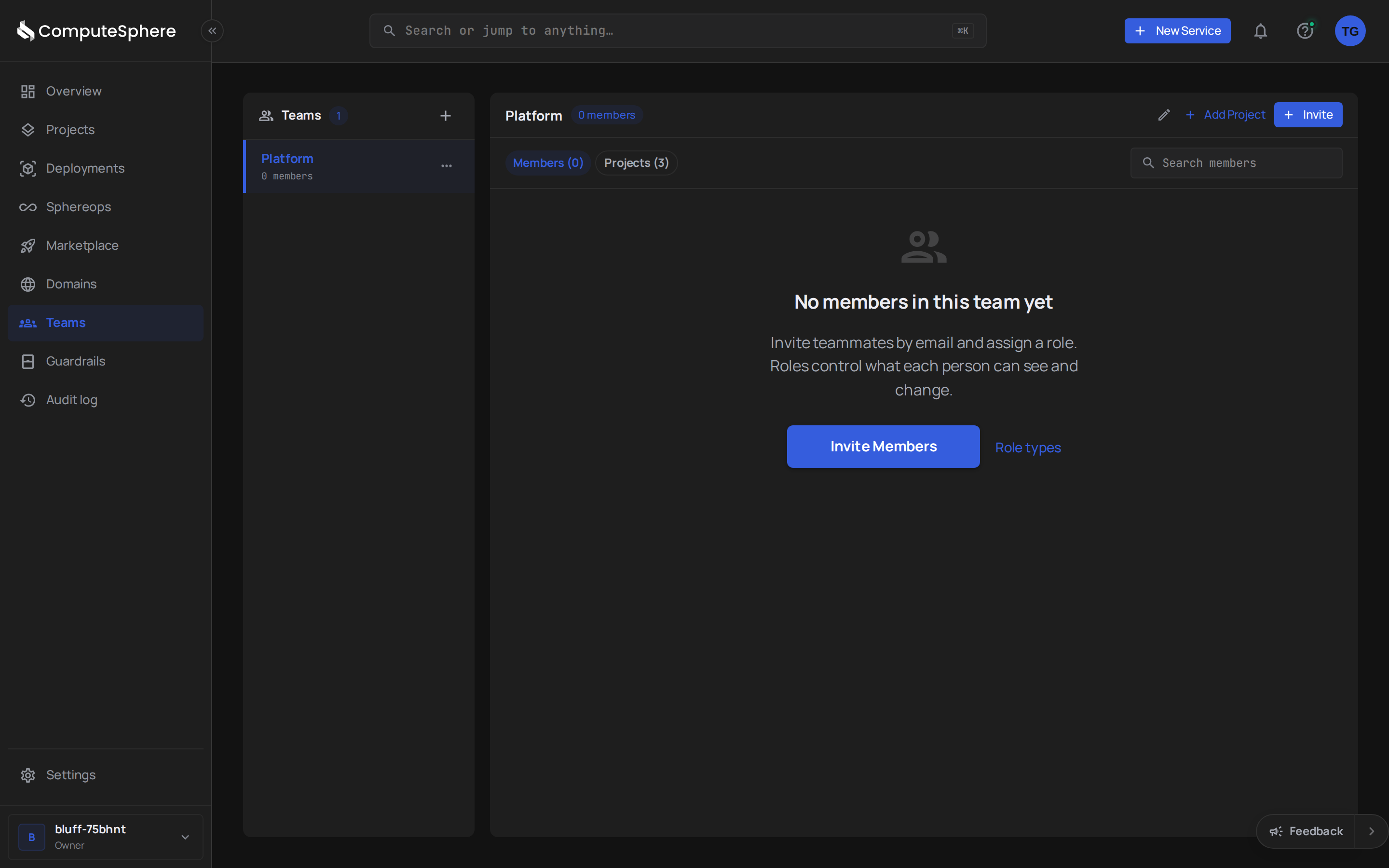
- Click Add to Team next to the account member you want to add. They appear in the team immediately.
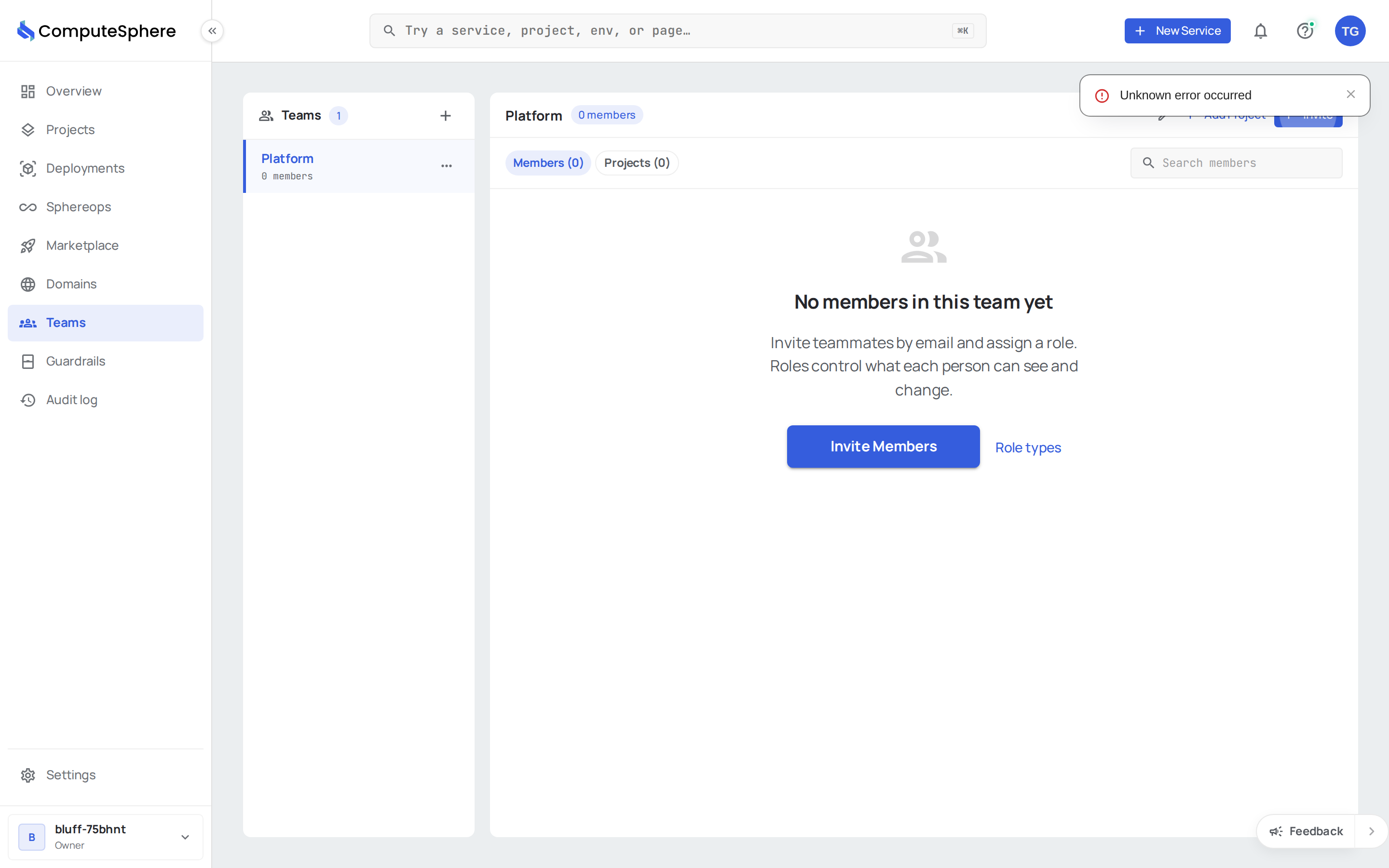
Remove a member from a team
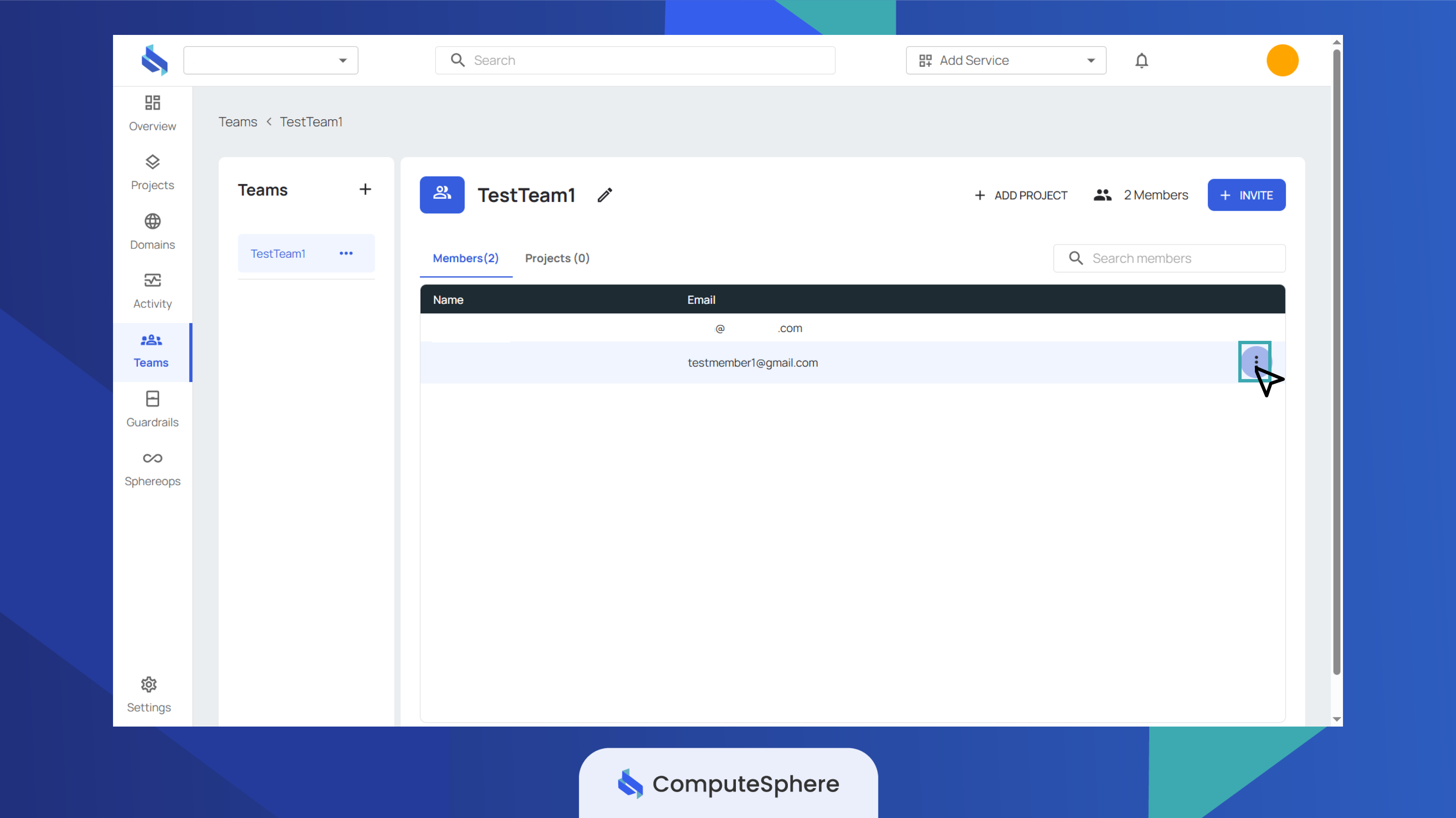
Removing a member from a team is immediate — they lose access to every project shared with that team in the same step. Their account membership is unchanged, and they keep access via any other team that shares the project.
- On the team's Members tab, click the actions menu (three dots) next to the member.
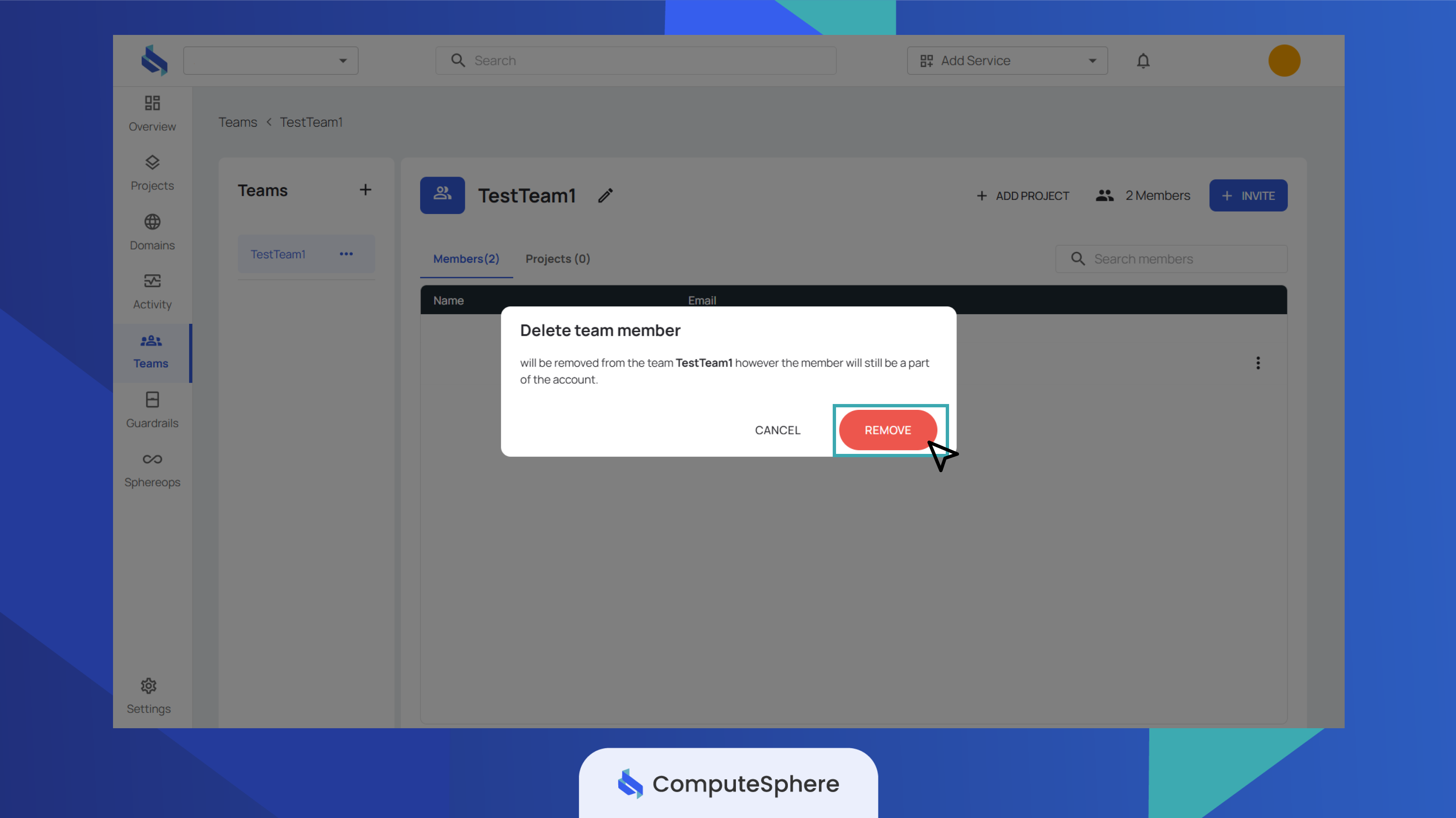
- Click Remove member, then Remove to confirm.
Search members
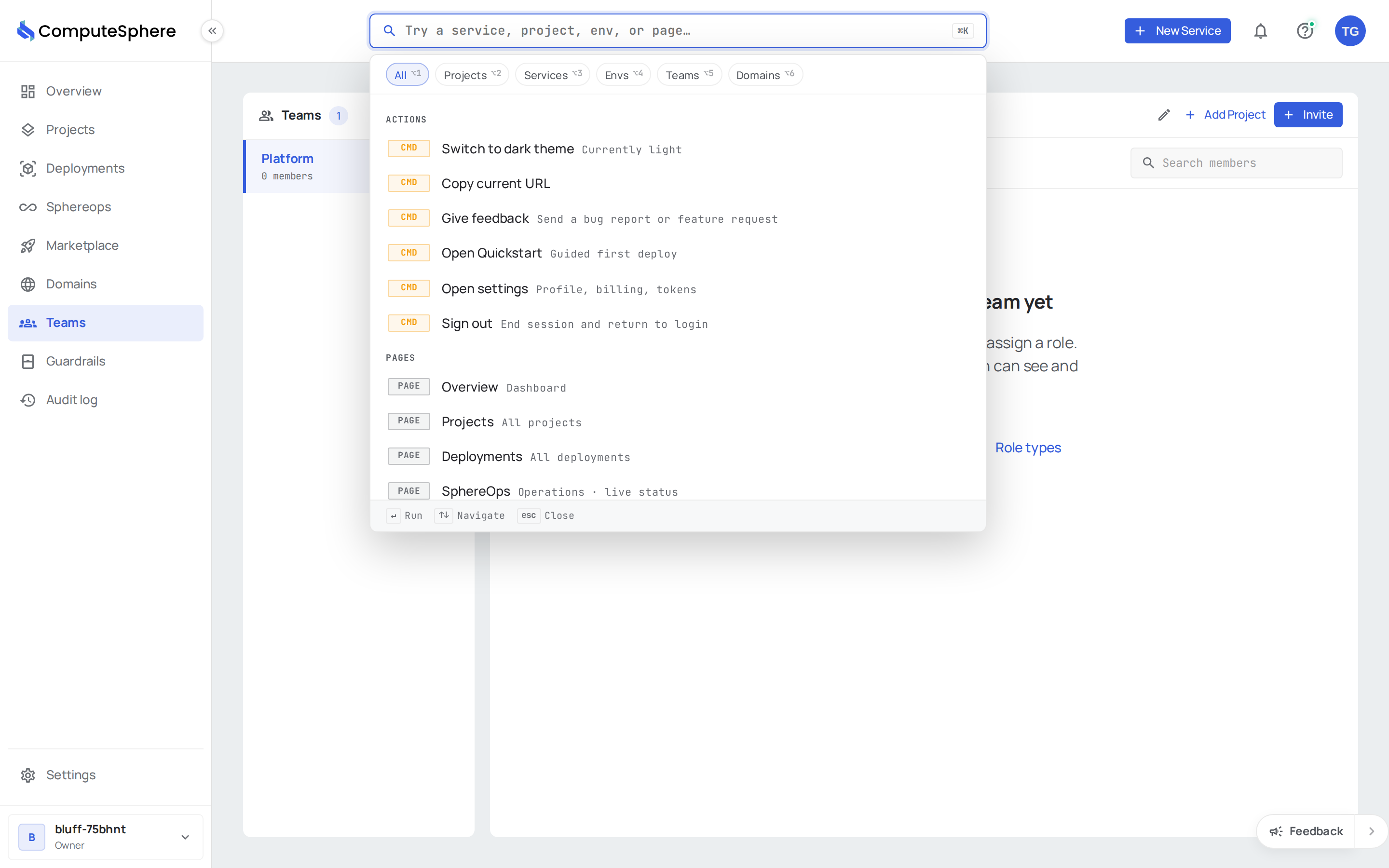
A search box in the Members tab filters by name as you type. There's no API filter parameter today — fetch the team and filter client-side.
Honest limits
- Account invite first, team add second. A user cannot be added to a team until they accept the account invite. The team add will return
404 Not Foundagainst the invitee's email if they haven't accepted yet. - Invitations expire. Pending invites have an expiry window — open the Settings → Members tab to see and resend any that have lapsed. The exact window is subject to change; resend rather than relying on a specific number of days.
- Removal is immediate, not delayed. A removed member loses project access in the next request — there's no grace period.
- Self-removal isn't supported. A user can't remove themselves from a team they belong to. An account Owner, Admin, or a team Admin has to do it.
- No team-level role today. Within a team, every member has the same level of access — the per-project role lives on the team-project share, not on each individual.
What's next
- Share a project with a team — pick Viewable, Editable or Admin
- Create a team — name the team before you invite into it
- Account settings → Members — manage account-wide membership and roles
- Security → Access controls — the full permission model